A Windows 11 black screen after login can leave you with a cursor but no desktop, or no visible picture at all. Start by checking whether the display and Windows still respond. Work through the checks below in order, and stop when the desktop returns.
This guide covers a blank screen around sign-in. A screen showing a stop code, or a PC that never reaches Windows, needs a different troubleshooting path. If the desktop works but feels sluggish, use our Windows 11 performance guide.
September 2026: Is Only the Wallpaper Black?
Update checked September 11, 2026. If your desktop icons, taskbar, and apps still work but the wallpaper has become a solid black color, check this specific issue before treating it as a missing desktop. Microsoft reported that the August 27 update KB5120998 could prevent background settings from loading on Windows 11 24H2 and 25H2. Manually choosing the wallpaper again may not fix that issue.
Microsoft lists the problem as resolved in the September 8 update KB5124008 and later updates. When Windows is usable, open Settings > Windows Update, install the latest update offered to your device, and complete any required restart. See the official issue details. This fix concerns background settings; it does not explain every black screen or replace the checks below when no usable desktop appears.
Choose Your Starting Point
- 1. Check the display and connections
- 2. Try the keyboard display shortcut
- 3. Restart Windows Explorer
- 4. Test Safe Mode if sign-in is visible
- 5. Review the display driver
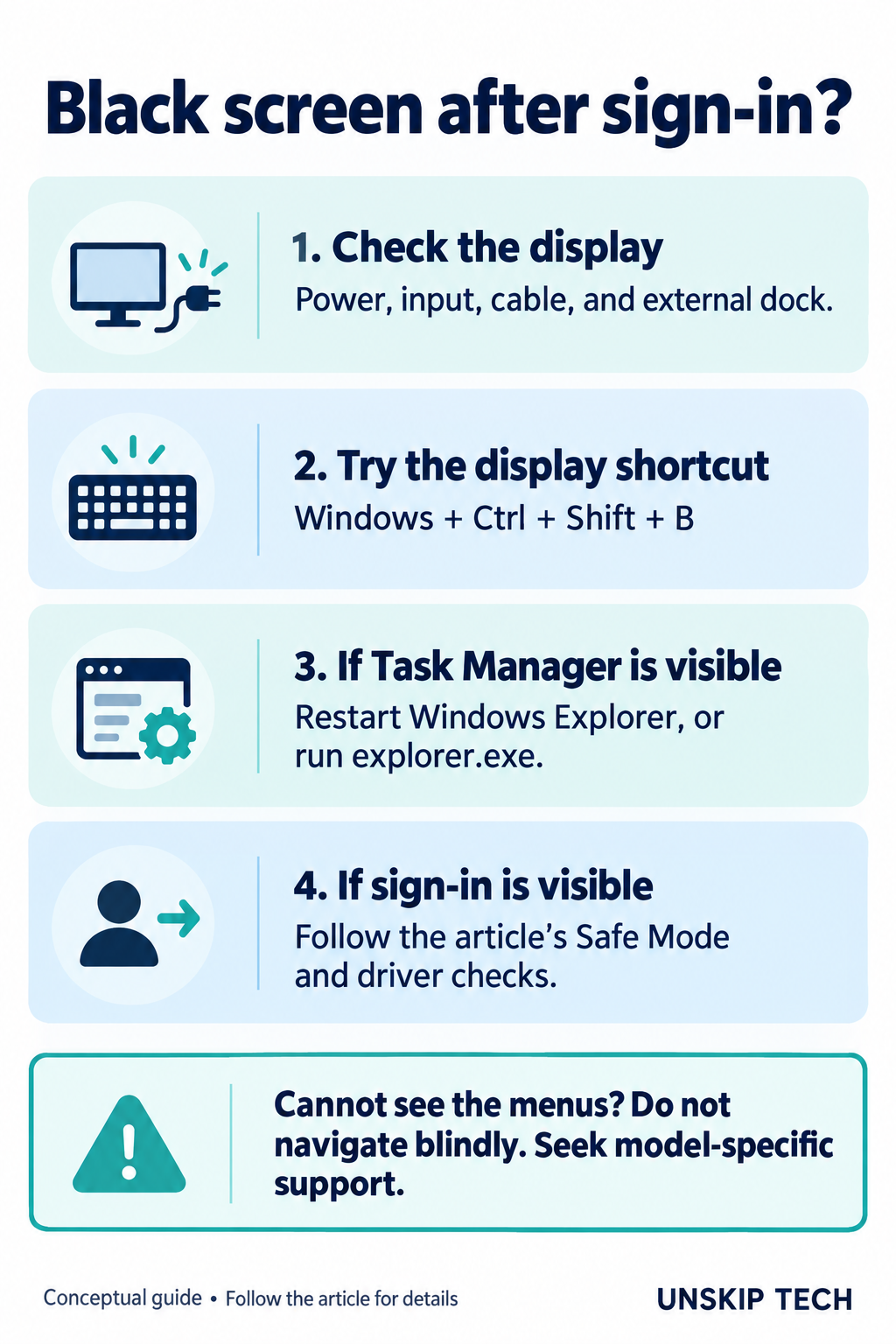
1. Check the Display and Connections
Make sure the monitor has power and its input matches the connected cable. Reconnect the display cable; try another cable or monitor if available. On a laptop, disconnect an external monitor or dock and check the built-in screen. Press Windows + P, then P and Enter to try another display mode.
2. Try the Keyboard Display Shortcut
Press Windows + Ctrl + Shift + B once to try waking a blank or black screen. Microsoft lists this shortcut in its Windows keyboard reference. Allow a moment for the picture to return before trying another action.
If you can see the desktop again, save open work. Note whether the issue began after connecting a monitor, signing in, or installing an update; that context will help if it returns.
3. Restart Windows Explorer
Press Ctrl + Shift + Esc to open Task Manager. If it appears, select Windows Explorer and choose Restart. If Explorer is missing, choose Run new task, enter explorer.exe, and press Enter. You can also try Ctrl + Alt + Delete and open Task Manager from the security screen. Microsoft includes these steps in its blank-screen troubleshooting guide.
4. Test Safe Mode if Sign-In Is Visible
Before restarting, save any accessible work and make sure you know your account password: a PIN or biometric sign-in is unavailable in Safe Mode. At a visible sign-in screen, hold Shift while selecting Power → Restart. Choose Troubleshoot → Advanced options → Startup Settings → Restart, then 5 or F5 for Safe Mode with Networking. See Microsoft’s sign-in troubleshooting instructions.
Recovery tools may ask for a BitLocker recovery key. Locate it before proceeding using Microsoft’s recovery-key guide. If you cannot see the sign-in or recovery screen, do not follow menu steps blindly; ask the PC manufacturer for help getting visible output.
5. Review the Display Driver
If the issue began immediately after a graphics-driver update and Windows is accessible, open Device Manager → Display adapters. Open the adapter’s Properties → Driver → Roll Back Driver and follow the prompts. This requires administrator permission. If rollback is unavailable, do not assume an earlier driver is stored.
For a driver update, use Windows Update or the correct package from your PC or graphics manufacturer’s official site. Follow Microsoft’s Device Manager driver instructions, then restart normally. Check whether the desktop, taskbar, and usual monitor arrangement work after signing in again.
If the Black Screen Returns
Record which checks worked, whether a cursor or security screen appears, your PC model, and any recent update. Share those details with support. Before considering recovery or reinstalling Windows, back up accessible files. Avoid changing several settings at once; one change followed by a normal sign-in makes the result easier to assess.