If your SSD is not showing during Windows 11 installation, stop at the drive-selection screen. An empty list does not mean you should erase another disk or replace the SSD immediately. First separate a drive-detection problem from a missing storage-controller driver.
This guide covers a personal x64 PC where Windows Setup already opens. If the installer never starts, use our USB boot-menu troubleshooting guide. For an Arm-based or managed device, follow the manufacturer or IT team’s recovery instructions.
Before continuing, verify your file backup if the drive contains data. The checks below aim to identify the drive, not authorize deletion of its contents.
Choose Your Starting Point
Check whether the PC detects the SSD
Find the correct storage driver
Prepare the driver files
Load the driver in Setup
Confirm the drive before continuing
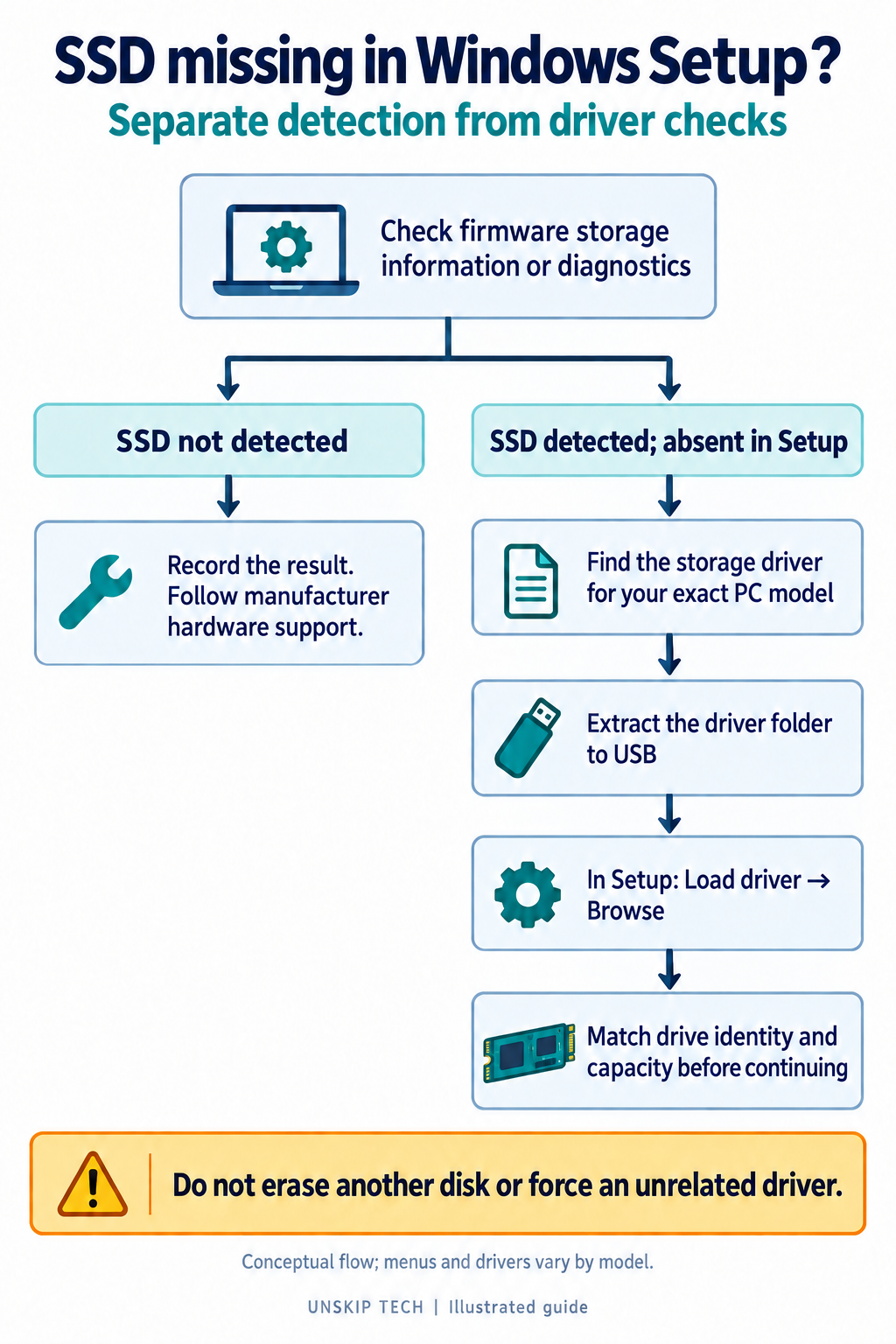
1. Check Whether the PC Detects the SSD
Use your PC manual to enter UEFI/BIOS and inspect its storage information or built-in diagnostics. Record the drive model and capacity if shown. A boot-priority list alone is not a complete inventory of installed storage.
If the SSD is absent from the manufacturer’s storage information or a diagnostic reports an error, record that result and follow the manufacturer’s hardware troubleshooting process. Dell, for example, provides drive diagnostics guidance. Avoid assuming that repeatedly loading Windows drivers will resolve a hardware-detection failure.
If the PC detects the drive but Setup does not, investigate the storage-controller driver next. This comparison narrows the problem; it does not establish the cause by itself.
2. Find the Driver for the Exact PC Model
Intel explains that Setup cannot detect storage behind a controller when the required driver is missing. A storage-controller driver is not necessarily a download named after the SSD brand.
On another working computer, open your PC manufacturer’s support page and identify the exact model or service tag. Look for the storage or chipset driver specified for Windows installation. Some Intel systems use RST/VMD drivers, but that is not a universal requirement for every Windows 11 PC.
Dell’s installation-drive guidance directs owners to the model’s support downloads. ASUS likewise limits its IRST procedure to applicable platforms. Check applicability before copying a driver version from a tutorial.
3. Extract the Installation Driver Files
Follow the download package’s extraction instructions and place the extracted driver folder on a USB drive. Copying only the downloaded installer is not the same as preparing the files that Setup can load. Keep the folder structure intact.
ASUS documents an Extract option in its example package and permits using the installation USB for the extracted files. Your manufacturer’s package may differ. If you cannot find an extraction method or the expected folder, return to that package’s instructions instead of guessing.
4. Use Load Driver in Windows Setup
At the installation drive-selection screen, choose Load driver, then Browse. Select the folder containing the extracted storage driver, confirm it, and choose the compatible controller driver specified for your PC. Continue with Next and check the drive list again.
Intel describes this process in its F6/Have Disk installation guide. Folder and controller names vary, so an example name from another model is not a selection rule.
If Setup finds no compatible driver, check the package, extraction folder, and model match. Do not force an unrelated controller driver simply to move past the screen.
5. Identify the Drive Before Continuing
When a drive appears, compare its capacity and identifying information with your earlier notes. Do not assume Disk 0 is the intended target. If several disks look alike, stop until you can distinguish them.
Return to the installation guide’s drive-selection step only after identifying the target and confirming your backup. Formatting or deleting partitions is a separate decision that can remove files and recovery options.
Should You Disable VMD or Change RAID/AHCI?
Do not make that your default fix. ASUS describes disabling VMD as a model-dependent alternative and notes that RAID arrays cannot be used with VMD disabled. Follow instructions for your exact configuration and preserve a record of the original setting before any manufacturer-directed change.
If the SSD Still Does Not Appear
Give support the PC model, SSD model, firmware detection result, exact Setup message, and driver package you tried. Mention whether the SSD is new or previously worked in this PC. These details are more useful than a list of random drivers or repeated installation attempts.