To write Excel formulas with AI, describe the calculation rule and worksheet layout before asking for syntax. Then compare the formula with a small set of independently calculated answers. A cell that returns a number has not necessarily returned the right number.
This walkthrough uses six fictional orders and a regional total for paid orders only. The expected results are calculated from the listed rows. This is an editorial example, not a live AI benchmark or a report of testing inside Excel.
1. State the rule before requesting a formula
Our rule is: add Amount values for the region named in a summary cell, but include only rows whose Status is Paid. Unpaid and Refunded rows are excluded. Every amount uses the same currency, and zero is a valid amount. This is a practice calculation, not a definition of revenue or an accounting policy.
Tell the AI which application you use, where the data starts and ends, and where the result belongs. Include column meanings and any exceptions. If a rule is undecided, settle it before generating the formula; otherwise, the model may choose a reasonable-looking interpretation that does not match your task.
2. Build a six-row example with known answers
Enter the following tab-separated sample in A1 of a blank practice sheet. The headers occupy row 1 and the six orders occupy rows 2 through 7. Enter Amount values as numbers.
Order	Region	Status	Amount
O-101	East	Paid	120
O-102	East	Unpaid	80
O-103	West	Paid	200
O-104	East	Paid	0
O-105	West	Refunded	50
O-106	East	Paid	20
Leave column E empty. Put Region in F1 and Paid total in G1. Enter East in F2, West in F3, and North in F4. Cells G2:G4 will hold the formulas.
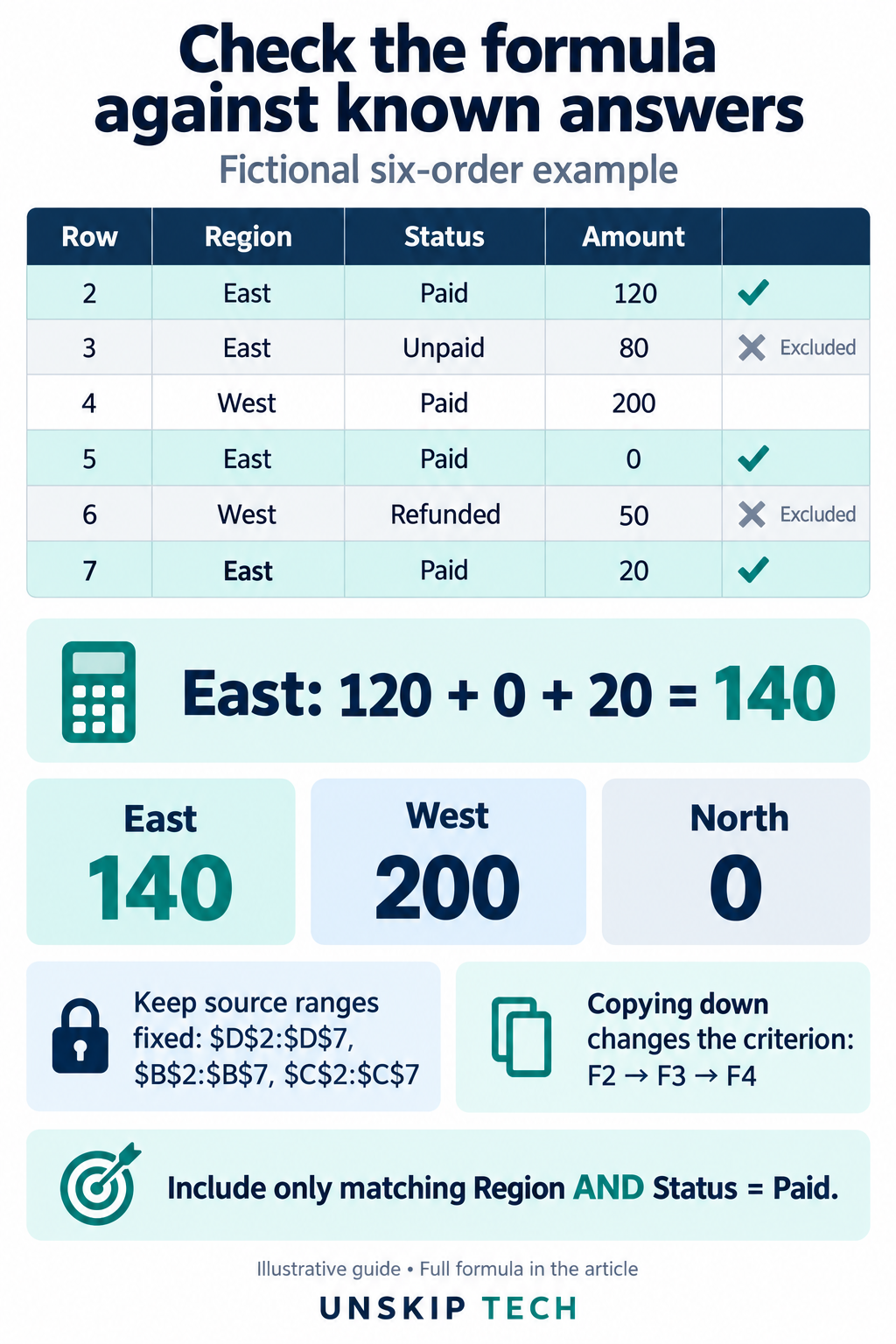
- East: O-101, O-104, and O-106 qualify, giving 120 + 0 + 20 = 140. O-102 is excluded because it is Unpaid.
- West: only O-103 qualifies, giving 200. O-105 is Refunded and is excluded.
- North: no rows qualify, so the expected total is 0.
Keep these answers outside the formula cells. They are your initial comparison values, not numbers supplied by the AI after it has generated a formula. If imported labels or amounts are inconsistent, resolve that separately using the checks in our AI spreadsheet data-cleaning guide.
3. Ask for a formula with explicit boundaries
Write an Excel formula for this practice sheet.
Use English function names and comma separators.

Headers are in A1:D1: Order, Region, Status, Amount.
Data occupies rows 2 through 7 only.
Amount contains numeric values in one currency, including valid zero values.
Region and Status labels are consistent.

The summary region is in F2. The formula goes in G2.
Sum Amount only when Region matches F2 AND Status is Paid.
Exclude Unpaid and Refunded rows.
Return 0 when no rows match.
I will copy G2 down to G4; keep the source ranges fixed while the summary region reference changes by row.

Return the formula, a brief explanation of its references, and its limitations.
Do not change the source data or invent additional rules.
The requested formula for this layout is:
=SUMIFS($D$2:$D$7,$B$2:$B$7,F2,$C$2:$C$7,"Paid")
Microsoft’s SUMIFS documentation explains that the function adds values meeting multiple criteria. Here D2:D7 supplies the amounts, B2:B7 is checked against the summary region, and C2:C7 is checked against Paid. All three source ranges cover the same six rows.
This example uses the requested English syntax and comma separators. If your Excel installation uses different formula conventions, ask for an adaptation to your setup and repeat the checks below.
4. Check what changes when you copy down
Enter the formula in G2, then copy it down through G4. Inspect the formula in G3: the summary reference should be F3, while every source range should still begin at row 2 and end at row 7.
=SUMIFS($D$2:$D$7,$B$2:$B$7,F3,$C$2:$C$7,"Paid")
The dollar signs fix the source references. F2 remains relative so that copying down changes it to F3 and then F4. Microsoft’s cell-reference guide explains relative, absolute, and mixed references.
A useful extra check is to temporarily change F3 from West to East. G3 should now be 140, just like G2. Restore West afterward. This exercises the copied formula with the same condition as the original, making a shifted source range easier to spot.
5. Try a plausible formula that fails the rule
An incomplete answer might use only the region condition:
=SUMIF($B$2:$B$7,F2,$D$2:$D$7)
For East, that includes the Unpaid order and gives 220. It is a valid-looking formula for a different question. The difference between 220 and the expected 140 exposes the missing status condition. Do not accept a formula solely because it has no error message.
Ask the AI to identify which stated requirement is missing and revise the formula. Keep the original expected answers; changing the expected total to match the generated result would erase the test.
6. Change one input at a time
Run these checks on the practice sheet, restoring the original values after each change. Record the actual result beside the expected result.
- Change D2 from 120 to 130. East should increase from 140 to 150; West should remain 200.
- Change D3, the Unpaid amount, from 80 to 800. East should remain 140.
- Change D6, the Refunded amount, from 50 to 500. West should remain 200.
- Change D5, the valid zero amount, from 0 to 5. East should become 145. This confirms that the row participates even though its original contribution was zero.
- Keep North in F4. Its total should remain 0 because none of the source rows uses that region.
A zero total alone cannot tell you whether there were no matching rows or matching rows whose amounts totaled zero. Our North case establishes the expected result for this specific sample; do not treat every zero in a real report as proof that no activity occurred.
7. Test the boundary before using more rows
The formula deliberately stops at row 7. If you append an East/Paid order with Amount 10 in row 8, the original formula still covers only the original six orders and returns 140 for East. A total intended to include the new order should be 150. Extend all source ranges consistently, then retest; do not assume a fixed-range formula automatically includes appended data.
Before using the formula in your working sheet, confirm the actual columns, last row, labels, and amount types. Preserve a copy of the original sheet and place results in a separate summary area. A correct six-row example does not validate every value in a larger file.
Save the calculation rule, approved formula, expected test results, and the date of review together. When a new status or inclusion rule appears, update the rule first and rerun the relevant tests. AI can help express the calculation, while your independent examples establish whether it answers the question you intended.
Once your summary formulas pass the checks, use our guide to creating Excel charts and checking the story before presenting the result. Its separate monthly-order example shows how source ranges, partial periods, and axis choices can change the message.