Is Wi-Fi not working after a Windows 11 update? First identify what changed: a missing Wi-Fi option, a failed connection, or a connection with no internet. The timing is useful evidence, but it does not by itself prove the update caused the problem.
Use this guide on a personal PC. For a work or school device, contact your IT team before changing drivers or resetting networking. Keep this page available on another device if your PC is offline.
Jump to a Check
1. Identify the symptom
2. Basic connection checks
3. Reconnect to your network
4. Check the Wi-Fi driver
5. Consider network reset
Verify the result
1. Identify the Symptom Before Changing Settings
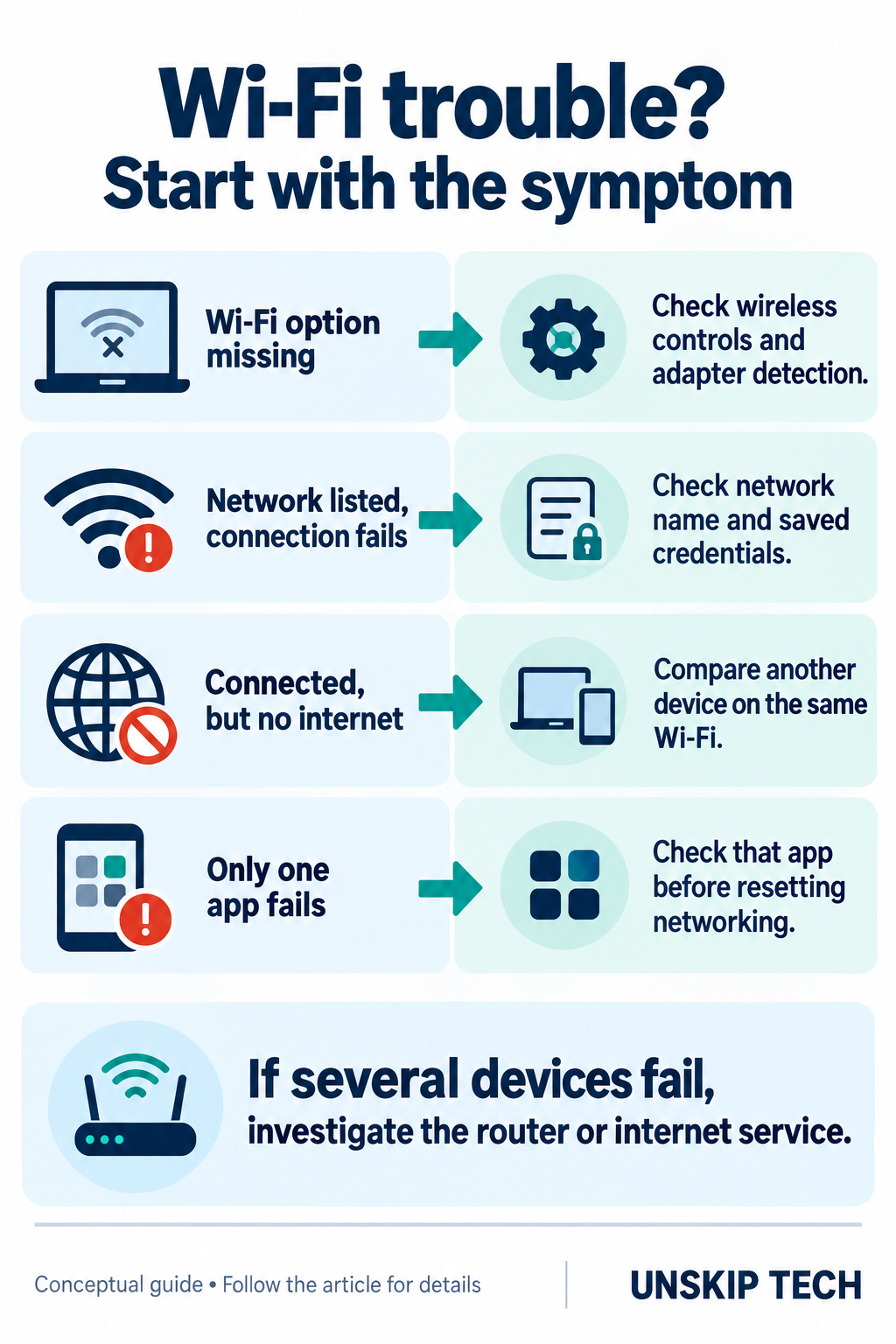
Write down the exact message and when you first noticed it. Choose the closest situation below; this helps you avoid applying every fix to a problem that needs only one.
| What you see | Where to focus |
|---|---|
| Wi-Fi option missing | Wireless controls and adapter detection |
| Your network is listed, but connection fails | Saved network details and credentials |
| Connected, but websites do not load | Compare other devices and networks |
| Only one app fails | Check that app before resetting the entire network |
2. Try the Basic Connection Checks
Turn Wi-Fi on and Airplane mode off. Save your work and restart the PC. Test the same network on another device, making sure a phone is actually using Wi-Fi rather than mobile data. If several devices fail, investigate the router or internet service before changing Windows drivers.
Open Get Help and run its Network and Internet troubleshooter. If Wi-Fi is missing, check any physical wireless switch and whether the adapter is disabled in Device Manager. Microsoft’s Wi-Fi troubleshooting guide provides the detailed checks.
3. Reconnect to the Correct Network
Confirm the network name and have its password ready. Select the network from the taskbar’s Wi-Fi list, choose Connect, and enter the password. Microsoft explains connection and saved-password options in its Wi-Fi connection guide.
If the saved connection keeps failing, open Settings → Network & internet → Wi-Fi → Manage known networks, select that network, and choose Forget. Reconnect with the correct credentials. Do not remove a managed network profile without your administrator’s guidance.
4. Check the Wi-Fi Driver After the Update
Open Device Manager → Network adapters. Find your wireless adapter, open Properties → Driver, and record its version and date. If a recent driver change coincides with the failure, use Roll Back Driver when available. Administrator permission is required; follow the prompts and restart if requested.
If rollback is unavailable, obtain a compatible driver from your PC manufacturer’s official support page. Match the exact model and Windows architecture. With no internet on the affected PC, download it on another device and transfer it by USB. Follow the manufacturer’s installer instructions or use Update driver → Browse my computer for drivers for an extracted driver package.
Avoid removing the adapter driver before you have a usable replacement available offline. Windows can attempt to reinstall a removed driver after restart, but automatic recovery is not guaranteed. See Microsoft’s driver update and rollback instructions.
5. Reserve Network Reset for Later
If the earlier checks fail, consider Settings → Network & internet → Advanced network settings → Network reset → Reset now. This reinstalls network adapters and restores their settings to defaults. VPN software or virtual switches may need reconfiguration, and network profiles may become public. Record custom settings first and expect a restart.
Before broader recovery work, use our file backup guide. A network reset is a networking repair; it does not replace a backup or identify which update caused the failure.
Verify the Result and Keep a Useful Record
After each change, try the same network and the same website. Once connected, check a second site and the app you originally needed. Note the step that restored access and stop making unrelated changes.
If the issue persists, give support your PC model, Windows version, adapter name, driver version, exact error, and the comparison test results. Include the update name from Windows Update history if you have it. A short record is more useful than repeatedly resetting the connection.
If your separate problem is that a feature upgrade is not offered, see our Windows 11 25H2 not showing up guide. That article covers update availability; this one focuses on restoring Wi-Fi access.