To install Gemini on Windows, start at Google’s official desktop download page and choose Download for Windows. This guide walks through the download, sign-in, and Alt + Space shortcut, then explains what to check when a feature is missing. Google launched the Windows app on September 10, 2026.
Requirements, download and usage-limit guidance checked October 5, 2026. This is a guide based on Google’s launch announcement and desktop download page. We verified the download page, but have not run a hands-on installation or performance test. Installer screens and feature availability can change.
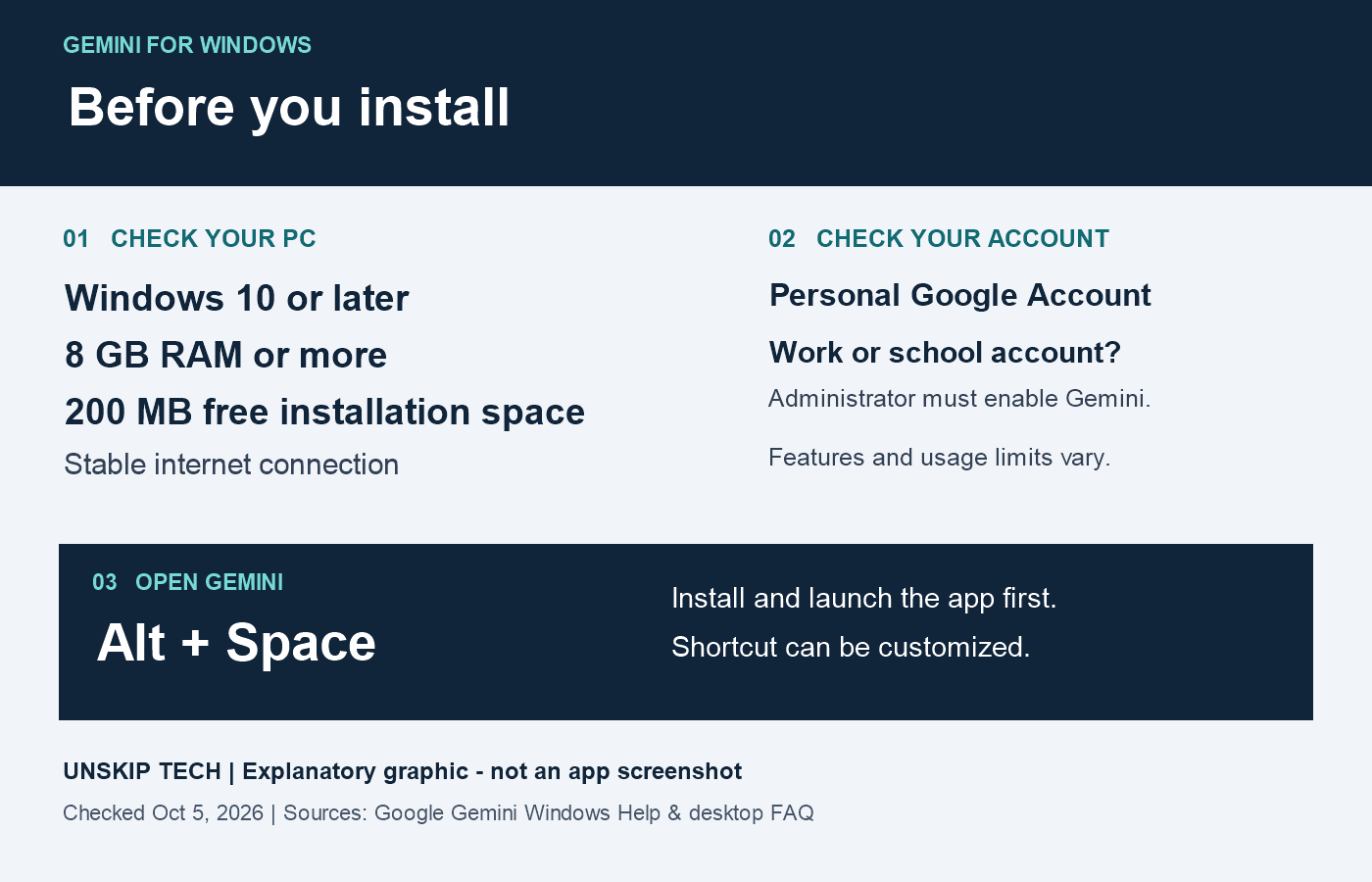
Before downloading: check these requirements
Google’s Windows installation help lists Windows 10 or later, at least 8 GB RAM, 200 MB free installation space, and a stable internet connection. Use a personal Google Account, or a work or school account whose administrator has enabled Gemini. Meeting the hardware requirements does not unlock every paid feature.
The help page names the installer GeminiSetup.exe. A matching filename alone does not prove a download is genuine; get it from Google’s page below.
1. Install from Google’s Official Page
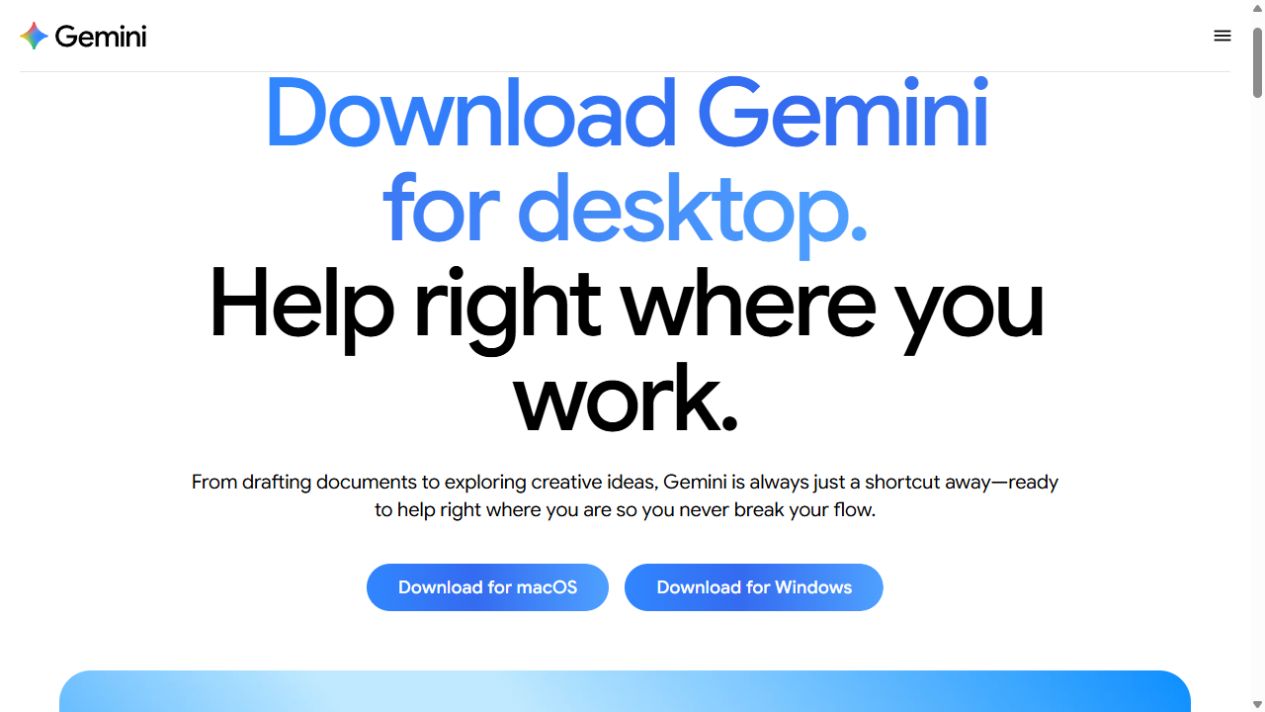
- Open Gemini for desktop. Confirm that the address belongs to gemini.google.
- Select Download for Windows. The page also offers a macOS download, so choose the Windows option.
- Open the downloaded installer and follow the instructions it displays. On a managed work or school PC, follow your organization’s software installation process.
- Launch Gemini and complete the account setup shown in the app. Use the account you intend to use for the task; a personal subscription does not automatically change a work account’s access.
Google’s desktop FAQ lists Windows 10 or later on x64 and ARM64 devices. These describe two processor architectures; match the installer to your PC if a choice is offered. App compatibility does not extend Windows support. Follow any additional requirements displayed by the download page or installer.
2. Try Alt + Space With a Small Task
With Gemini installed and running, press Alt + Space. Google documents this shortcut as opening Gemini over your current work. Ask a simple question first, then return to your original app and check that the workflow is comfortable.
For an initial writing exercise, use these fictional notes:
Draft a short project update using only these facts: the outline is complete; image review is still pending; no publication date has been approved. Keep the missing date explicit and do not claim the project is ready to publish.
Review whether the result preserves the unfinished image review and avoids inventing a date. Opening Gemini over a document is not evidence that it has read that document. Supply the relevant text or use an available, approved connection, then check the source it actually used.
3. Check Access Before Planning a Larger Task
| Task | Check first |
|---|---|
| Questions and drafting | Sign-in, available features, and current usage limits. |
| Gmail or Drive context | The connection is available and enabled for the intended account, and the answer uses the intended source. |
| Gemini Spark or Gemini Omni | The launch announcement specifies Google AI subscription, availability, and age-18-plus conditions. |
| Local files and desktop actions | Verify Windows availability for the exact feature. Do not assume a macOS demonstration also applies to Windows. |
Google describes image generation and other Gemini workflows in the app, but installing it is not a promise of unlimited access. The desktop page also distinguishes existing macOS capabilities from features coming to Windows. Check the current plan comparison and the controls shown in your account.
Do you need to pay?
Google lists standard Gemini usage without an AI plan; paid plans expand access. Its current limits guide describes compute-based limits affected by the model, task complexity and conversation length. Limits refresh every five hours until the weekly cap is reached. This is not a guaranteed number of free questions, and paying does not mean unlimited use. Check the limit notice in your account before buying a plan for a specific task.
Our suggestion: try the small writing exercise above with your existing access first. Consider a subscription only when a required feature or a repeated usage limit blocks work you actually need to complete.
Windows app or Gemini in Chrome?
The standalone Windows app and the browser’s Gemini integration have different setup instructions. Gemini in Chrome uses the browser’s Ask Gemini control and, by default, the current tab as context. It has separate region, account and rollout conditions. Installing the desktop app is not evidence that the Chrome feature is enabled, or that a desktop chat can see every open tab.
4. If a Shortcut or Feature Is Unavailable
- The shortcut opens something else: open Gemini directly to check that it launches. Google says the shortcut is customizable in Gemini’s settings. Check whether another app uses the same keys, then choose an unused combination and test it; avoid changing several settings at once.
- A feature asks for an upgrade: check its plan requirement before paying. The app download and access to a particular generation or agent feature are separate questions.
- Work information is missing: verify the signed-in account, permitted connection, and source selection. Do not assume the app can access every file on the PC.
- The installer or app fails: record the exact message and your Windows version. Return to Google’s desktop page for its help links and current requirements rather than downloading an unofficial replacement.
5. Keep the Windows app updated
Google’s Windows help says an available update is announced when you open the app. Choose Restart to update to apply it. This restarts Gemini; it is not a Windows feature upgrade. If no update notice appears, the guide does not justify downloading a replacement from an unofficial site.
For Gmail, Drive and other integrations, see our Connected Apps setup and privacy guide. Check the intended account and permissions before supplying work material.
For help choosing between services, see our AI assistant comparison and office-worker guide. If your PC itself is slow across several apps, use the Windows performance checks. Browse the AI guides for more small tasks to try.