To create a blog thumbnail with AI, generate a simple background first, then add the headline as a separate text layer. This makes it easier to fix spelling, change the title, and reuse the layout for your next post.
This tutorial uses a real AI-generated background made for an example article about organizing digital files. You can see the original, the prompt used, and a headline placement example. The image was generated with the built-in image-generation tool in Codex; the layout below was assembled on this page. It is not a screenshot of Canva or a Canva-exported file.
The workflow is to plan the layout, generate a background, add the headline, check a small preview, and export and publish. Product instructions were checked on September 8, 2026.
1. Plan the thumbnail before generating
For our example, the topic is digital file organization and the short headline is “ORGANIZE YOUR FILES.” Blue folders communicate the subject without needing a screenshot or an invented software interface.
- Shape: a wide, approximately 16:9 composition. A 1200 × 675 canvas is one practical starting size, not a universal blog requirement. Check the space your theme actually displays.
- Layout: folders on the right; clear space for the headline on the left.
- Style: one simple illustration, a pale background, and a dark headline.
- Message: one topic that matches the article, with no extra promises or unsupported statistics.
For a different subject, change the main object rather than adding several unrelated symbols. A notebook could suggest study; a single envelope could suggest email. Choose an image-capable tool from our task-based AI tool guide.
2. Generate a background without the headline
Here is the full prompt used for the background shown below. The requested size was a preference; the actual returned file was 1672 × 941 pixels. Always check the downloaded dimensions instead of assuming the model followed the size request exactly.
Use case: ads-marketing. Asset type: background-only example for an English tutorial on creating blog thumbnails with AI. Create a landscape 16:9 editorial illustration at 1536 by 864 if supported. Subject: three simple blue file folders and one white document sheet, arranged as a polished, gently dimensional paper illustration on the RIGHT HALF of the frame. Left half must be uncluttered pale warm-white negative space reserved for a separately added headline. Soft studio shadows, restrained cobalt and light-blue palette, clear recognizable silhouette, a clean modern technology-blog aesthetic. Keep all objects comfortably inside the frame with generous margins. No text, no letters, no numbers, no logos, no watermark. This image is a concrete example for a blog post about organizing digital files.
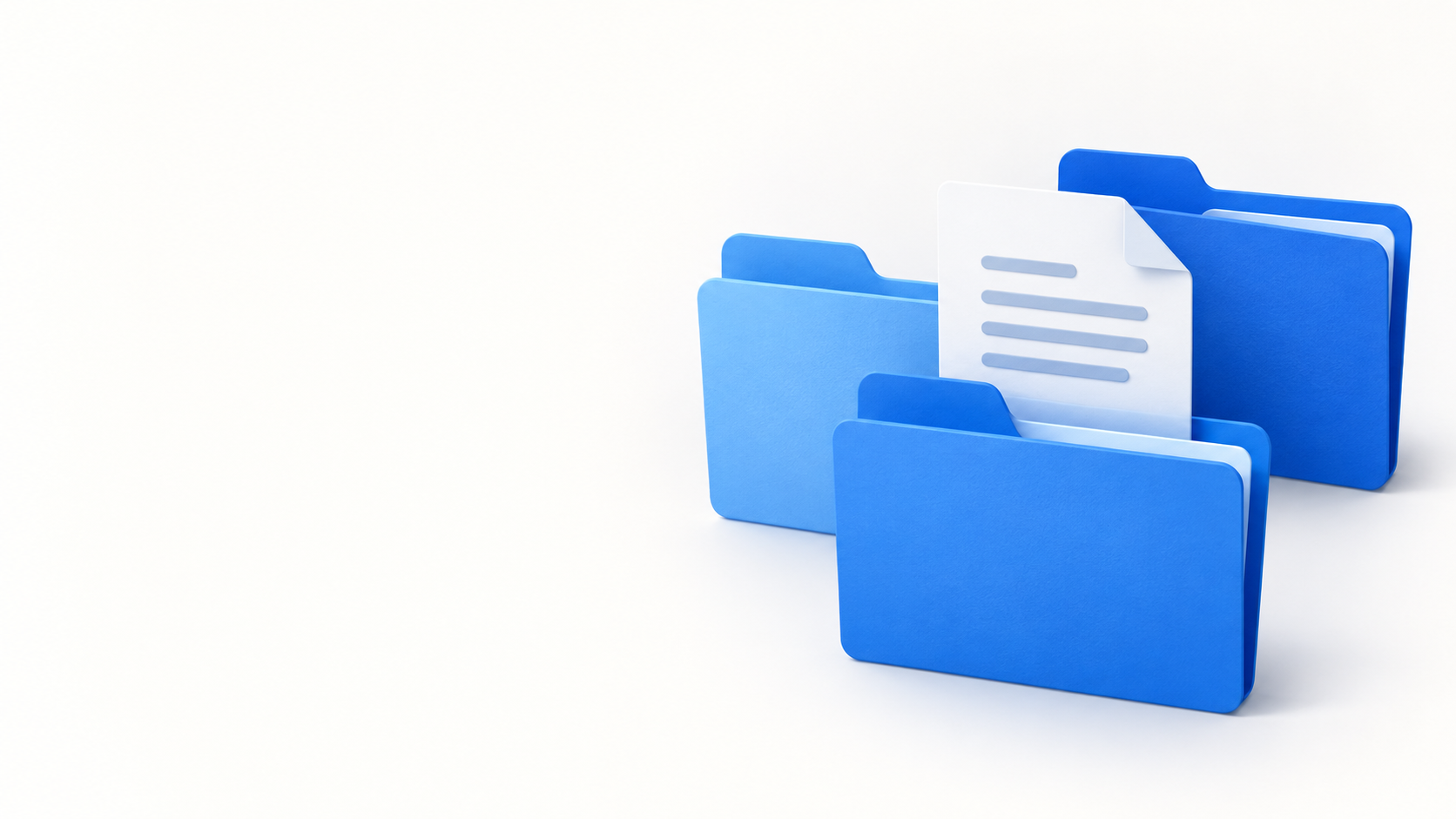
The result keeps recognizable folders on the right and a useful open area on the left. The paper contains decorative horizontal marks rather than readable text. Inspect details like these before deciding whether an image fits your intended use.
If your version fills the entire frame, request one specific revision: “Keep the same subject and colors. Move the objects into the right half and leave the left half plain for a headline.” Results will vary. Our prompt-writing guide explains how to specify constraints and follow up.
3. Add a separate headline
The example below uses the same background with the short headline placed over the blank area. Keeping the title separate lets you change words without regenerating the folders.
To recreate this in Canva, start a design with your chosen dimensions, upload the background, and place it on the canvas. Add a text box from Text, type the headline, and adjust its position, font, size, and color. Canva documents this sequence in its add-text-to-photo guide.
Use one bold, easy-to-read font and a dark color against the pale background. Split the title across two lines and keep space around it. At 1200 pixels wide, try roughly 75–85 pixels for the headline, then adjust for your font and preview. These are starting values for this layout, not required settings.
Save the editable design as well as the eventual image export. Downloading just the background from this page will not include the headline: the example title is a separate page element.
4. Check the thumbnail at a small size
View the design at roughly 300 pixels wide. That is a useful test size for this exercise; your site may use a different size. Read the headline without zooming and check that the folders are still recognizable. A detailed image that looks impressive full-screen can become unclear in a small article card.
- If the title is hard to read: shorten it, enlarge it, or increase contrast.
- If the picture competes with the text: move or simplify the subject instead of adding more effects.
- If a crop cuts off the title: move important content inward and check the actual card layout.
- If the image suggests the wrong topic: change the object or headline before publishing.
A square crop of this wide design could cut away either the text or the folders. If your theme needs a square card, make a separate square version and recompose it rather than relying on an automatic center crop.
5. Export the image and add it to your post
In Canva, use Share and the download option to export the completed design as PNG or JPG. Compare the exported file at its intended display size and choose a file that keeps the lettering clear without unnecessary weight. Keep the editable project separately; a flattened export does not preserve editable text layers.
Give the file a descriptive name such as organize-files-thumbnail.jpg. Check the tool’s output terms and any fonts, photos, or template assets you added. The example here uses a newly generated illustration, but that is not a blanket rights guarantee for other projects.
In WordPress, add the exported file to the Media Library and select it as the post’s featured image if your theme uses one. Use an Image block when you also want it inside the article. These are different placements; inserting an image in the body does not necessarily set the featured image. See the WordPress Image block documentation.
Write alternative text that describes the image’s purpose in its context. For the original example, a useful description is “Three blue folders on the right with blank space on the left for a headline.” For an image containing important words, convey those words when they are needed to understand it. Do not turn alt text into a list of search keywords.
Finally, preview the published post and its article card on a phone-sized screen. Check the image crop, headline readability, and whether the featured image appears where you expected. A reusable layout saves work only after it fits the places where readers will actually see it.
Describe the image in its publishing context
Use the alt-text workflow and visual example to decide which details a reader needs. The same illustration may need descriptive alt text in a tutorial and an empty alternative when it is purely decorative beside equivalent text.
For another task, browse the AI guides by workflow.